 Docmend
PDF feedback, back in your Doc.
Your reviewer marked up the PDF. Docmend turns every highlight, sticky note and strike-out into a real Google Docs comment, on the exact words. It also exports your Doc to Word and PDF without losing fonts or comments.
Google Docs is great until the Doc leaves Google.
Retyping each note into the Doc takes an hour and you still miss a few. Google Docs can’t import PDF annotations.
Google fonts get swapped, suggestions show up as tracked changes, and your private comments travel with the file.
File → Download → PDF leaves the comments out, so you can’t print, share or archive a review round.
Everything opens next to the Doc you’re working on.
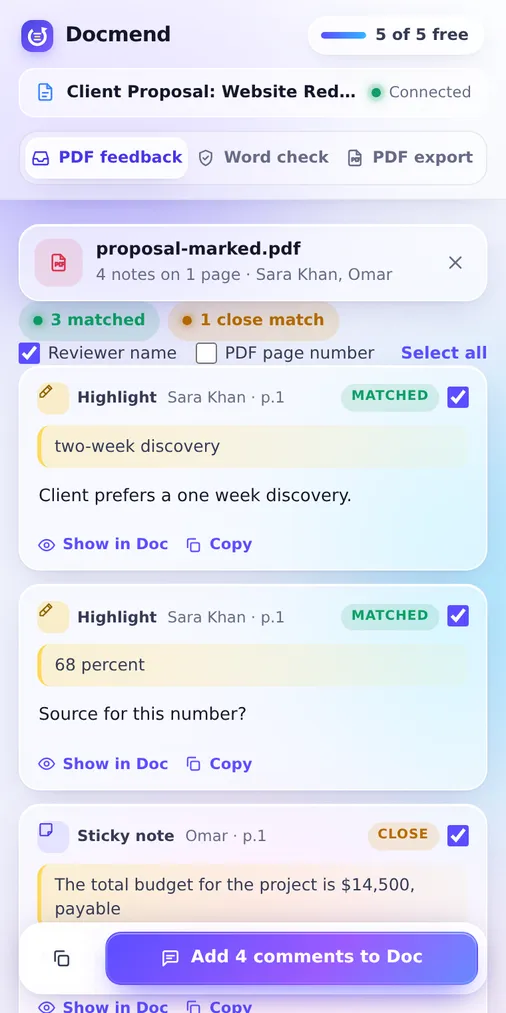
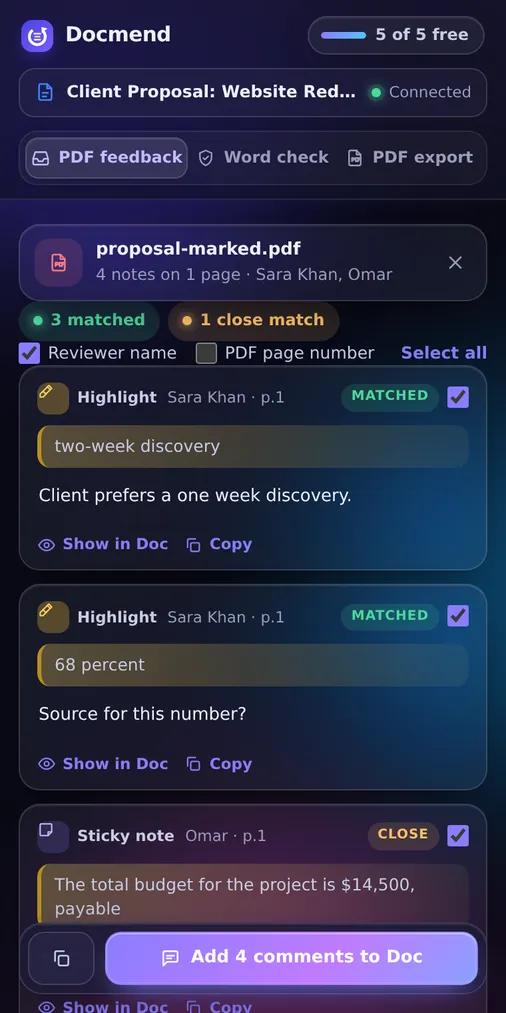
Drop the marked-up PDF. Get real comments.
Docmend reads the notes in the PDF, finds the same words in your Doc, and adds each note as a comment with the reviewer’s name.
- Works with Acrobat, Mac Preview, Edge, Foxit, GoodNotes and Notability
- Highlights, sticky notes, strike-outs, underlines and text boxes
- Still matches when the text changed a little since the PDF was made
- Edit or skip any note before it’s added
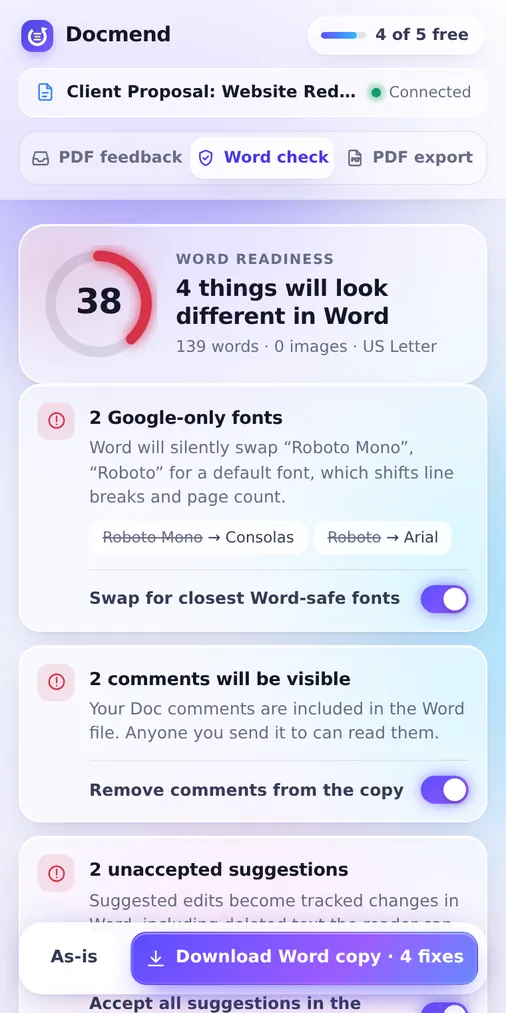
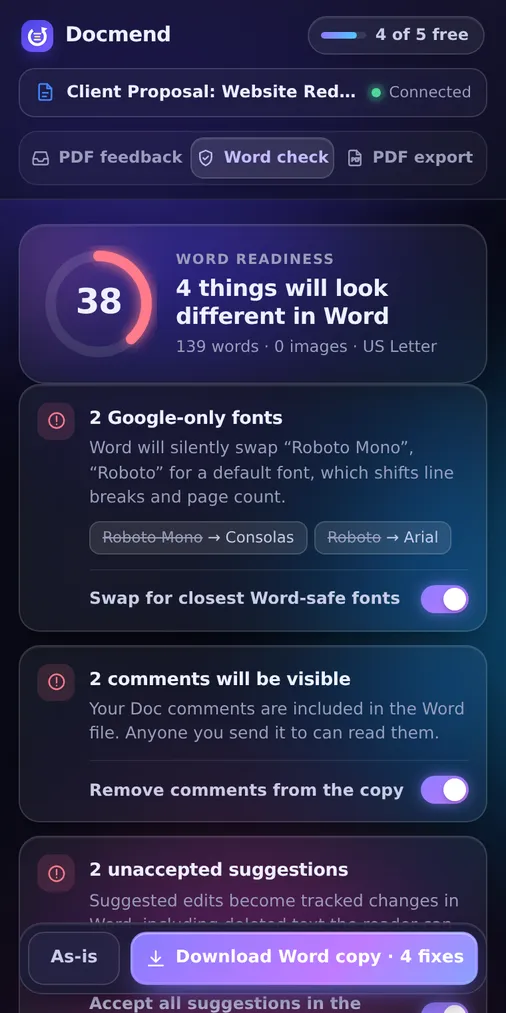
Know what breaks in Word before you hit send.
A readiness score for the .docx you’re about to send, with one-click fixes that produce a clean Word copy.
- Swaps Google-only fonts like Roboto and Lato for the closest Word fonts
- Removes comments and accepts suggestions in the copy, not your Doc
- Compresses heavy images to get under email limits
- Switches between A4 and US Letter
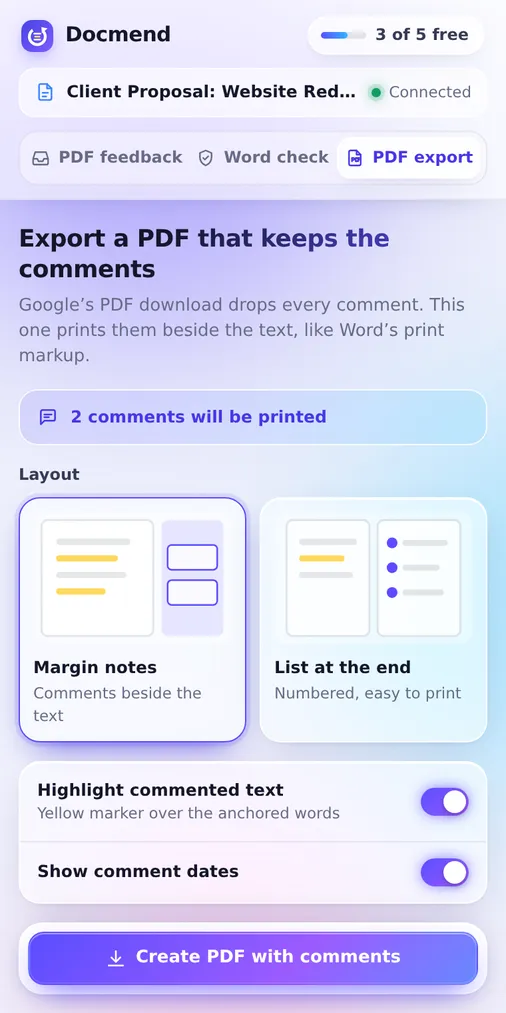
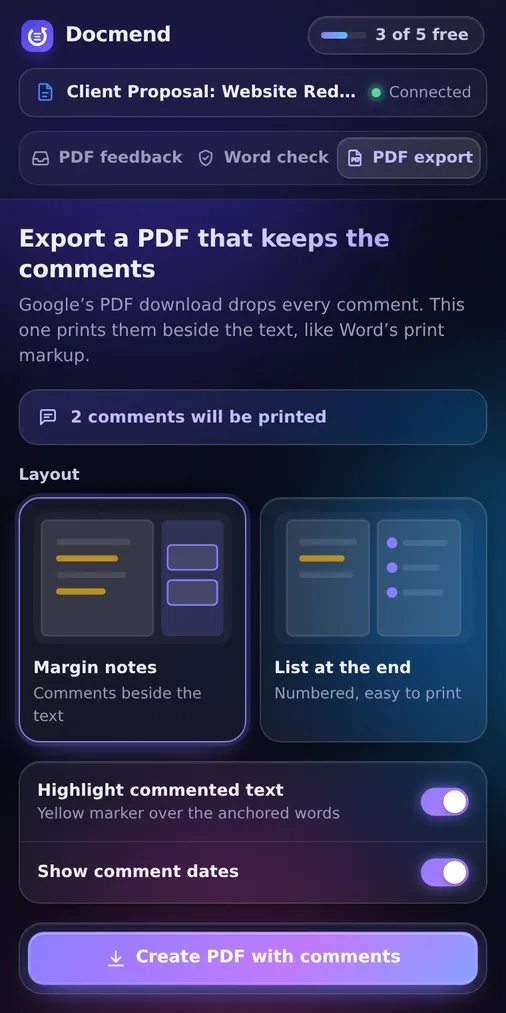
A PDF that keeps every comment.
Print a review round or send it to someone outside Google. Comments sit in the margin next to the highlighted words, like Word’s print markup.
- Margin notes, or a numbered list at the end
- Replies, authors and dates included
- Links and page layout stay exactly as Google exports them
Set up in under a minute.
Add to Chrome
Install from the Chrome Web Store and pin the Docmend icon. No account to create.
Open any Google Doc
Click the icon. The side panel connects to the Doc using your own Google sign-in.
Pick a tool
Import PDF feedback, check a Word export, or save a PDF with comments.
Your documents never touch our servers.
Docmend does all its work inside your browser. There’s no Docmend account, no document upload, and no tracking. Contracts, theses and client work stay between you and Google. Read the privacy policy.
Free for the occasional review. Pro when it’s your job.
Free
- 5 actions a month (imports, Word copies, PDFs)
- Unlimited Word readiness checks
- All three tools
Pro
Most popular- Unlimited PDF feedback imports
- Unlimited clean Word copies and comment PDFs
- No Docmend footer on PDFs
- Priority email support
Questions people ask first.
Which PDF apps does it work with?
Any app that saves standard PDF annotations: Adobe Acrobat and Reader, Mac Preview, Microsoft Edge, Foxit, Xodo, GoodNotes, Notability and most iPad markup apps. Flattened scans or photos of paper don’t contain notes Docmend can read.
Why does Chrome say Docmend is “debugging this browser”?
Google doesn’t let apps attach comments to specific words, so Docmend adds them the way you would: it selects the text and uses the comment shortcut. Chrome shows that bar whenever an extension types into a page. It disappears as soon as the import finishes.
Do I need to give Docmend access to my Google Drive?
No. Docmend only works with the Doc open in your tab, using the sign-in you already have. There’s no Google permission screen and nothing is stored on our side.
What counts as an action on the free plan?
Adding a batch of PDF notes to a Doc, downloading a fixed Word copy, or creating a PDF with comments. Running the Word check itself is always free. Actions reset on the 1st of each month.
How do I activate Pro?
After checkout you get a license key by email. Click the plan badge in the Docmend panel, paste the key, and press Activate. You can use it on up to 3 browsers.
Can I cancel anytime?
Yes. Cancel from the link in your receipt email. Pro keeps working until the end of the period you paid for.
Mend your next review in minutes.
Install Docmend, open the Doc, drop the PDF. The notes are in the Doc a minute later.
Add to Chrome, it’s free